
· 3 min read
I’ve been using ThinkPads for a long time… They’ve been the most cost-effective laptops I could find on my local used market.
Here are the ThinkPads I’ve had so far:
- X220
- T440s
- L14 Gen 3
- T14 Gen 2
Compared to MacBooks, ThinkPads lose their value pretty quickly. That’s actually great if you’re buying one: every year, you get more for your money on the refurbished market.
But I also know what a rabbit hole it can be to find the model you want. Maybe you want an older one, or a collector’s model, or just whatever has the best specs for your budget.
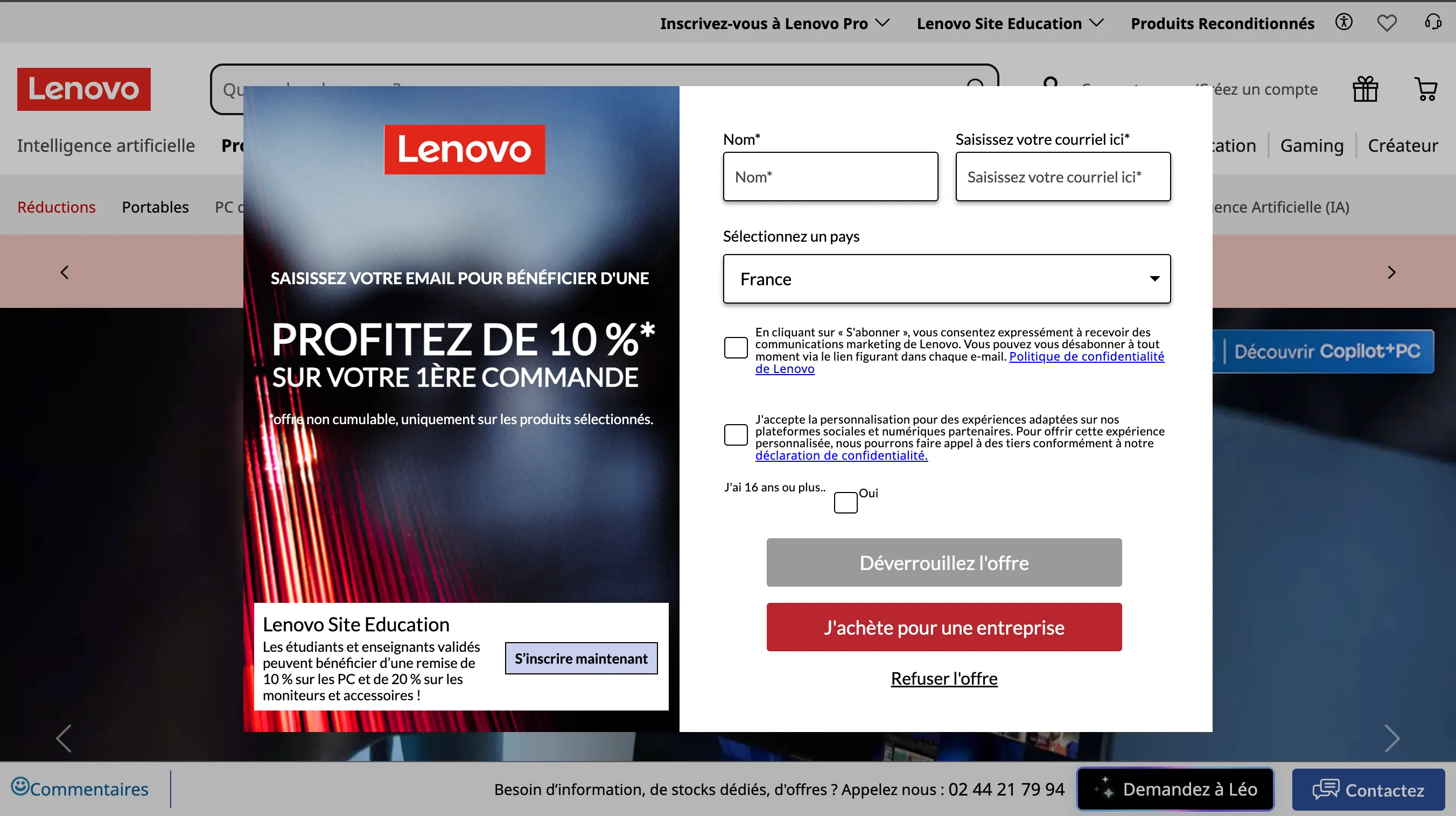
I would love to be able to browse every ThinkPad in one place, but Lenovo’s website has never really been my thing. Here’s what it looks like when I open it (2026):
so I made a static table instead : iercan.com/thinkpads
Think of it as diskprices.com, but for ThinkPads. Right now it has 235 ThinkPads in it, from 2018 to 2026. Here’s what it looks like:
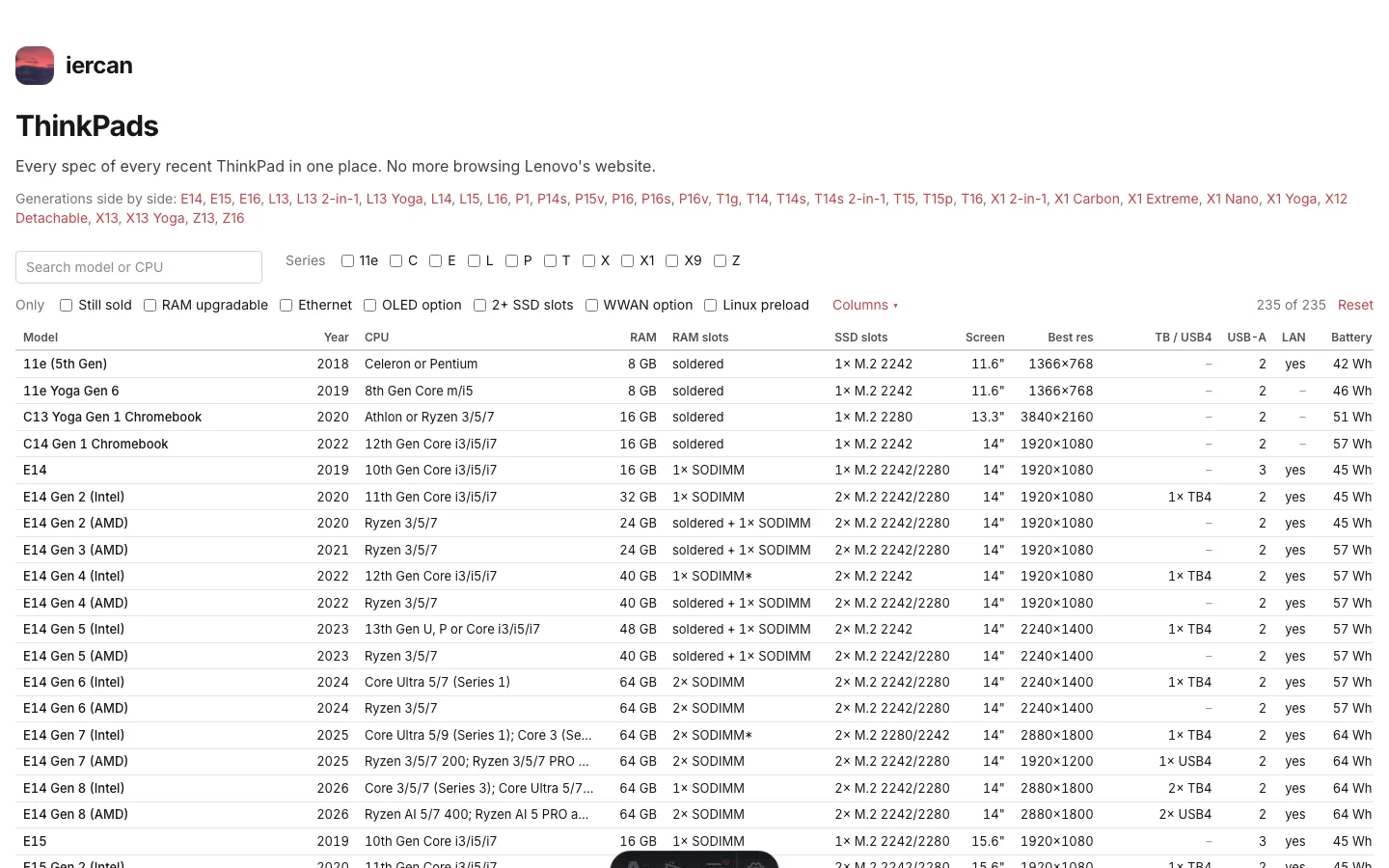
searching and filtering
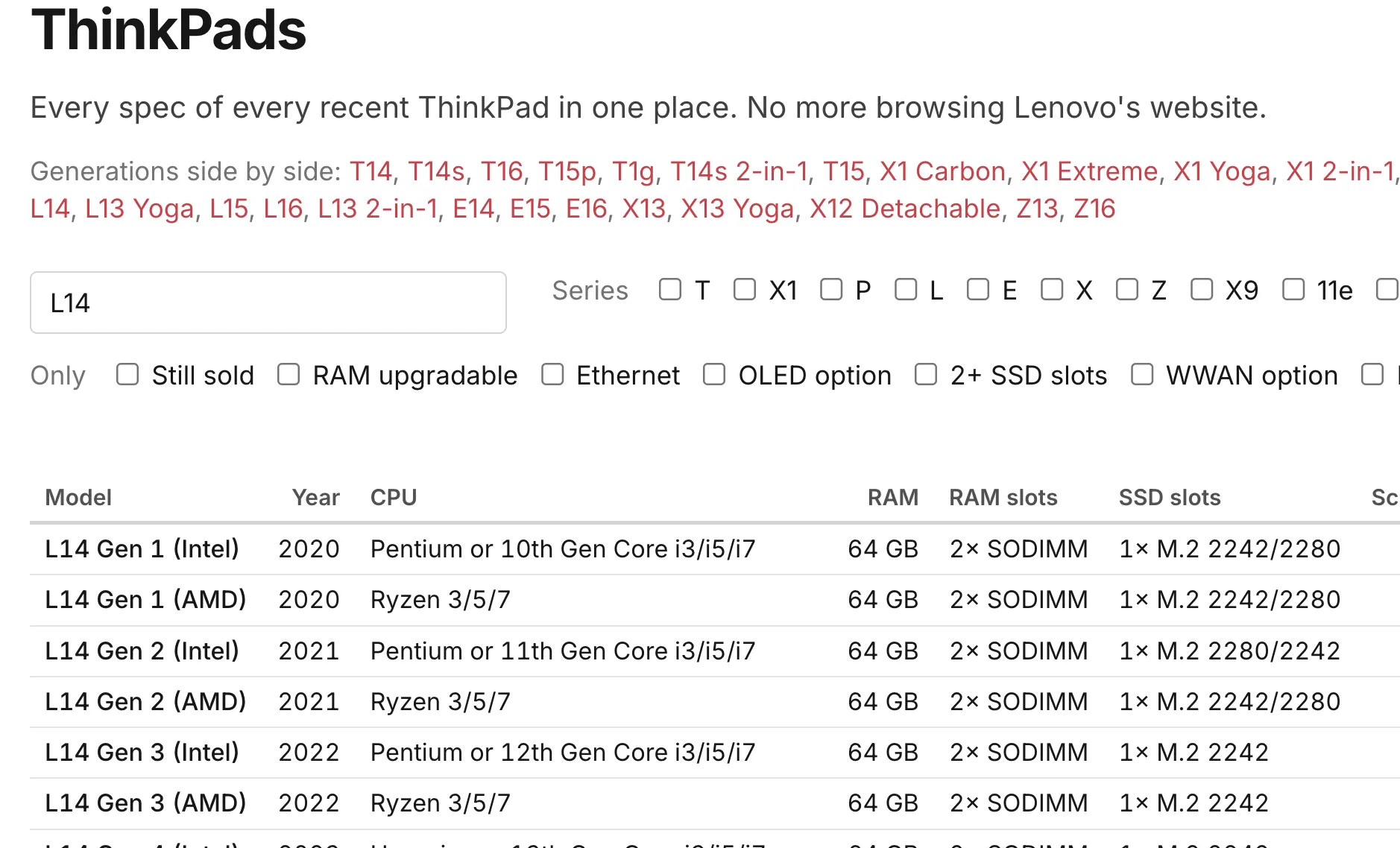
You can search by model or CPU, sort by any column, and filter for things like “RAM upgradable”, “Ethernet” or “OLED option”. For example, here’s what you get if you search for “L14”:
every generation side by side
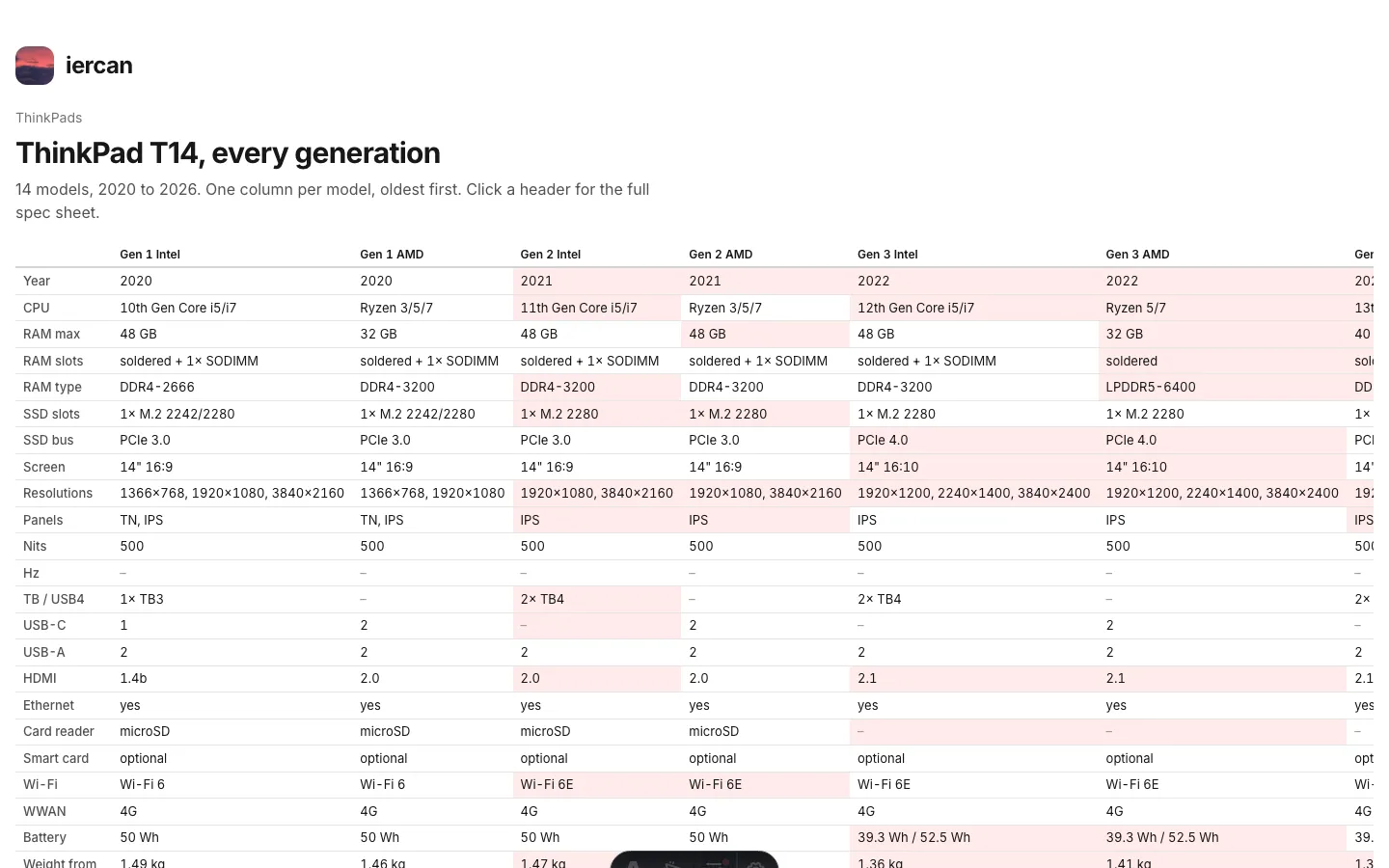
If a line has more than one generation (like the T14 or the L14), it also gets a page with all of its generations side by side, so you can see how one model changed over the years.
The cells that changed since the previous generation are highlighted in pink. For example, the T14’s RAM went soldered on the Gen 3 (AMD), and then came back as 2× SODIMM on Gen 5:
one page per model
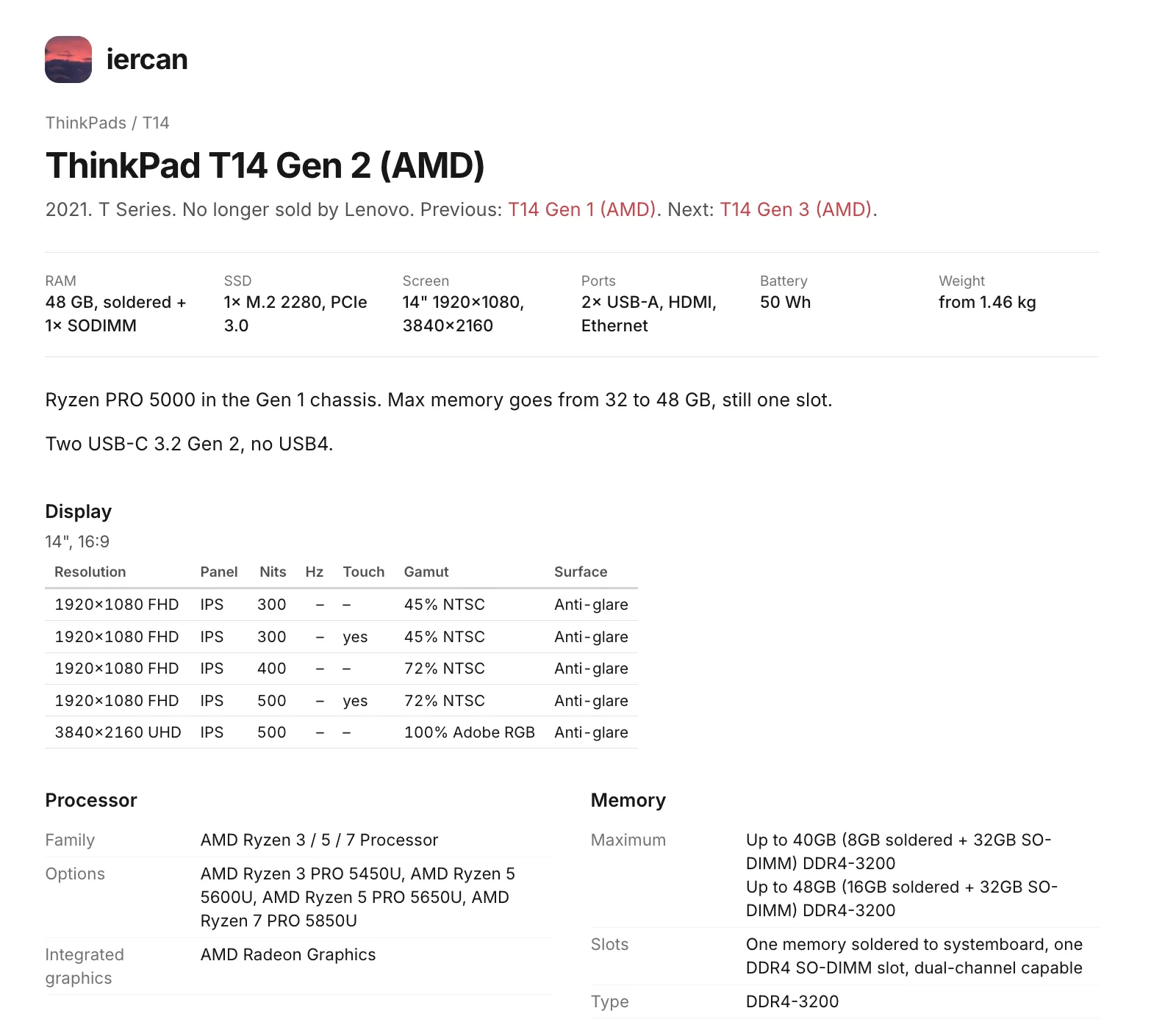
And every model gets its own page with all of its specs. Here’s the one for the T14 Gen 2 (AMD) (the T14 Gen 2 is one of the ThinkPads I’ve had!):
you can also ask an LLM
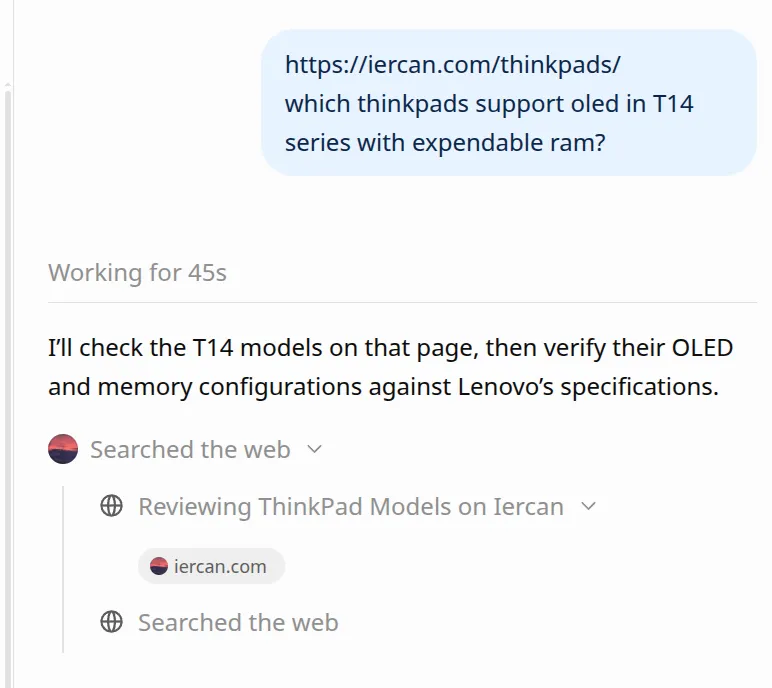
LLMs can browse the web with their tools now. And iercan.com is a fully static site on Cloudflare, so it’s very easy to scrape
you can give a newer model the link and just ask it a question.
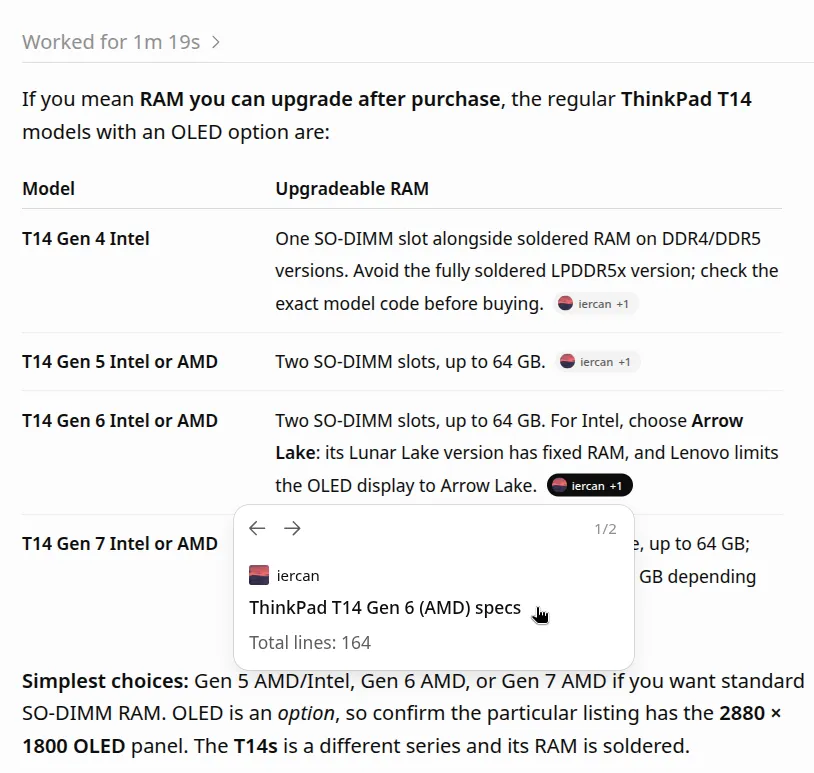
Here’s the answer it came back with. The little “iercan” tags are its sources, and they link to the model pages on my site:
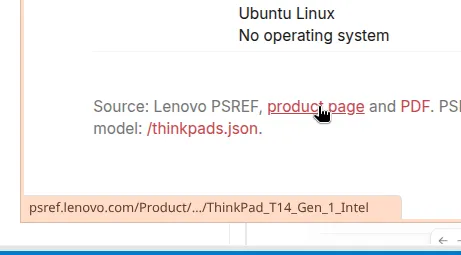
I put a “Source” line at the bottom of every model page, with links to Lenovo’s PSREF page and PDF for that model, so LLMs (or you!) can double check everything:
This might not be the best use case, but I think it’s good to know. It works with DeepSeek/other models too.
how does it work?
The specs come from PSREF, which is Lenovo’s “Product Specifications Reference”. It turns out PSREF has a JSON API that anyone can use. No login, no API key!
These are the two endpoints I use:
- https://psref.lenovo.com/api/ph/ProductCategoryTree lists every product
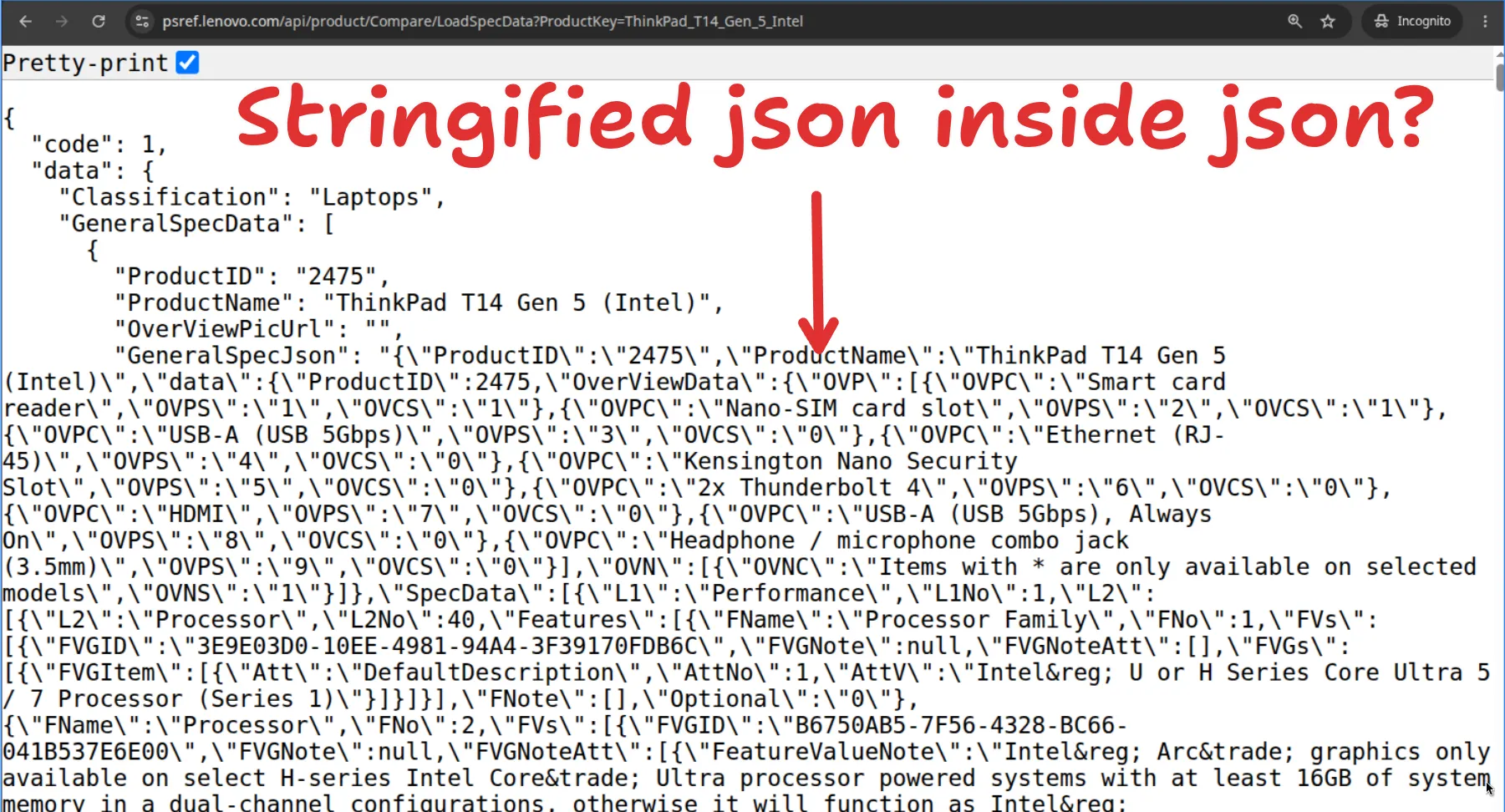
- https://psref.lenovo.com/api/product/Compare/LoadSpecData?ProductKey=ThinkPad_T14_Gen_5_Intel has all the specs for one model
A note on older models: the API doesn’t include all of the older ThinkPads (like the X220 or the T440p). The oldest ones in the table right now are from 2018, so my old X220 and T440s aren’t here.
problem 1: JSON inside JSON
The first weird thing I ran into: the specs are a string of JSON inside the JSON response. So you parse the JSON, and then you parse the JSON again.
problem 2: the specs are sentences
Once you get to the actual values, they’re sentences written for humans, like “One drive, up to 2TB M.2 2280 SSD”:

A couple more examples:
- “Two DDR5 SODIMM slots, dual-channel capable”
- “One drive, up to 128GB M.2 2242 SSD or 1TB M.2 2280 SSD”
After fighting with Claude to parse every edge case in this JSON (regexes!), here’s the kind of output I store, as plain JSON:
{
  "key": "ThinkPad_T14_Gen_5_Intel",
  "memory": {
    "maxGb": 64,
    "types": ["DDR5-5600"],
    "kind": "sodimm",
    "slots": 2
  },
  "storage": {
    "slots": 1,
    "formFactors": ["2280"],
    "pcie": ["4.0"],
    "maxTb": 2
  },
  "batteryWh": [39.3, 52.5],
  "weightKg": 1.31
}
If you want that data for every model in one file, it’s at /thinkpads.json.
that’s all!
Hopefully it’s useful to people other than me :)
(btw, the L14 Gen 3 is the best one)